Table of contents
- What is the NetMirror extension?
- Why do people search for the NetMirror extension?
- How to check a browser extension before installing
- How to install the NetMirror extension from the official store
- How to disable or remove the NetMirror extension
- Is the NetMirror extension safe? Privacy risks to know
- What are the safer options instead of an extension?
- Conclusion
The NetMirror extension is a browser add-on that many people find while trying to get the NetMirror website to load or pass its verification step. Before you install it, you should know what it really does, who makes it and what access it gets to your browser. This guide covers all of that in simple steps.
Quick answer: "NetMirror Extension" is an add-on listed on the Chrome Web Store and Firefox Add-ons. Its listing describes it as a header modifier that adds, changes or removes HTTP request headers. A third-party tracker shows 500K+ users and version 3.20.7 (September 2026). It is not a verified official NetMirror product.
What is the NetMirror extension?
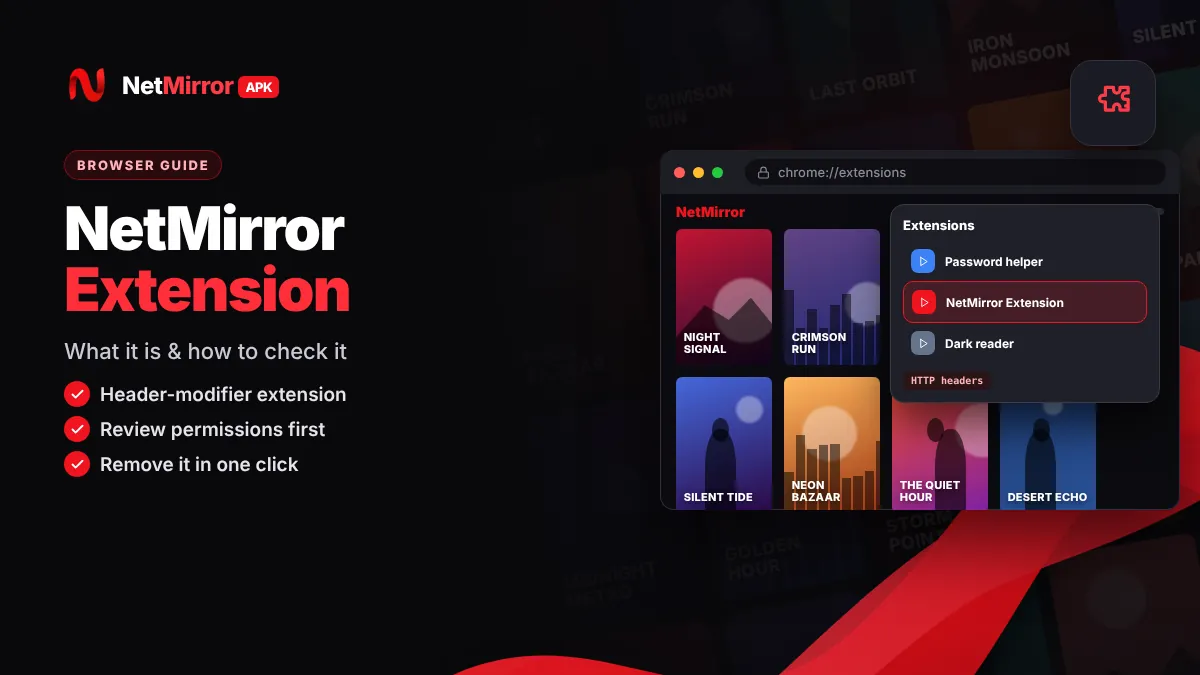
The NetMirror extension is a header-modifier tool for Chrome and Firefox. HTTP headers are small pieces of information your browser sends with every web request, such as which browser you use or which page sent you. A header modifier lets you add, change or remove these details, which is mainly useful for web developers and testers.
Here is what we could confirm about the net mirror extension:
| Detail | What we found |
|---|---|
| Name on the store | NetMirror Extension |
| Where it is listed | Chrome Web Store and Firefox Add-ons |
| What the listing says it does | Adds, modifies or removes HTTP request headers |
| Users | 500K+ (third-party tracker, September 2026) |
| Version | 3.20.7 (third-party tracker, September 2026) |
| Official NetMirror product? | Not verified |
| Main privacy concern | Can read and change your web requests |
The NetMirror app itself is a third-party, unofficial streaming service, and its developer is anonymous. We found no proof that the same team publishes this extension, so treat it as a separate product.
Why do people search for the NetMirror extension?
Most people search for it because the NetMirror website does not load or keeps showing a verification screen. Videos, comments and some websites suggest the extension as a fix, which pushes the search volume up.
We do not share header settings or steps to skip ads or verification. If the website is stuck, the normal fixes in our NetMirror login and verification guide, such as allowing cookies and trying another browser, are the safer first step.
Tip: The regular Chrome app on Android phones does not support extensions. If you are on a phone, an extension is not the answer; the app or the plain web version is.
How to check a browser extension before installing
A high user count does not prove an extension is safe. Spend two minutes on the store listing and check these points first:
- Developer: Look at the publisher name and whether it links to a real website or contact email.
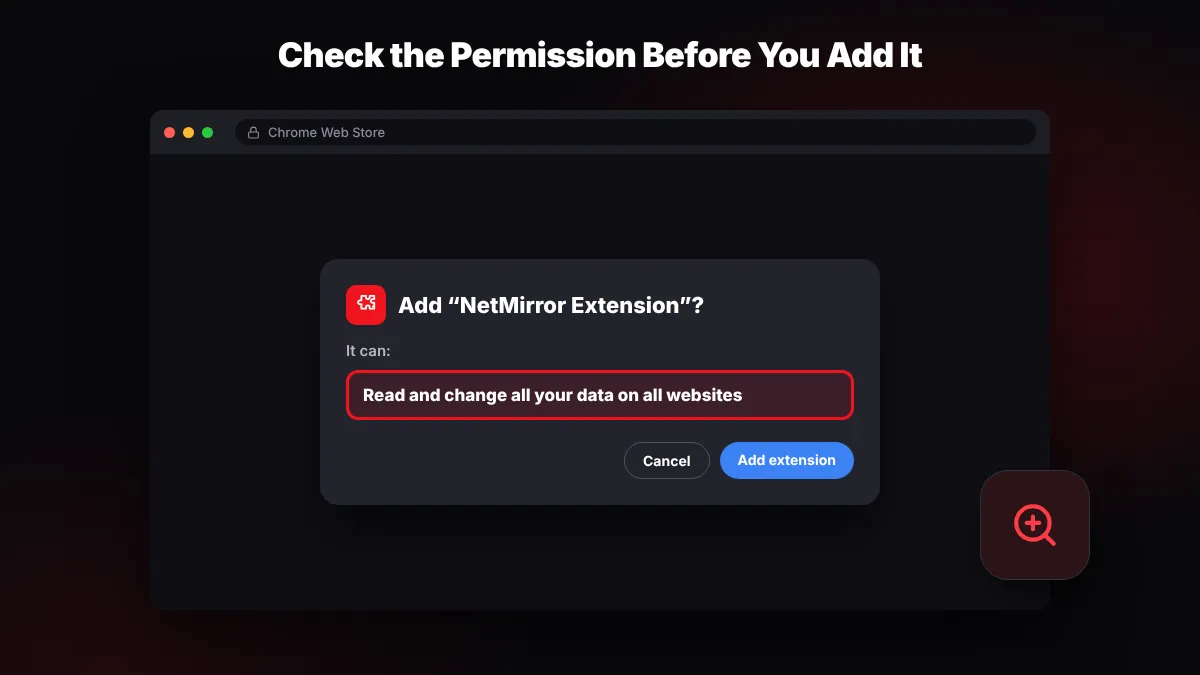
- Permissions: A warning like "Read and change all your data on all websites" means the add-on can see every page you open, including banking and email.
- Reviews: Read the newest one-star and two-star reviews, not just the overall rating.
- Last updated: An extension that has not been updated for a long time may not be maintained.
- Privacy section: Check what data the listing says it collects and whether it is sold or shared.
- Copycat names: Search results may show several add-ons with similar names. Match the exact name and developer.
How to install the NetMirror extension from the official store
If you still decide to use it, install it only from the official Chrome Web Store or Firefox Add-ons site. Never install a browser extension from a ZIP file or CRX file shared on a random website or Telegram group.
On Google Chrome or Microsoft Edge
- Open the Chrome Web Store. Type "Chrome Web Store" in Google and open the result from google.com.
- Search for the exact name. Type "NetMirror Extension" and open the listing.
- Check the details. Review the developer, permissions, reviews and last updated date.
- Click "Add to Chrome". Read the permission pop-up carefully before you confirm.
- Click "Add extension". The icon appears under the puzzle-piece menu next to the address bar.
On Mozilla Firefox
- Open Firefox Add-ons. Go to the official Mozilla add-ons site from the Firefox menu (Add-ons and themes).
- Search and open the listing. Check the developer and the permissions section.
- Click "Add to Firefox". Read the permission prompt, then click "Add".
How to disable or remove the NetMirror extension
You can turn the extension off or delete it at any time. It is a good idea to remove it when you are not using it.
- Chrome: Type chrome://extensions in the address bar. Use the blue toggle to disable it, or click Remove to delete it.
- Edge: Type edge://extensions and use the same toggle or Remove button.
- Firefox: Type about:addons, open Extensions, click the three dots next to the add-on and choose Remove.
In Chrome, you can also click Details under the extension and change Site access to "On click" or "On specific sites". This limits where it can run.
Is the NetMirror extension safe? Privacy risks to know
The risk comes from how header modifiers work, not from one bad feature. An add-on that can edit your web requests can also see them.
Sees your traffic
With broad permissions, it can see the pages and requests your browser makes on every site.
Changes requests
It can alter what your browser sends, which could break logins or affect security checks.
Updates can change it
Extensions update automatically, so a future version could behave differently from today's.
Unverified developer
It is not confirmed as an official NetMirror product, so you cannot check who is behind it.
Important: If you install it, use a separate Chrome profile for streaming, and never use online banking, UPI or work accounts in that profile. Read our full NetMirror safety guide for more risks.
What are the safer options instead of an extension?
For most people, the safest choice is to skip the extension completely. You have simpler options:
- Android phone or tablet: The app usually needs no extension and no verification.
- Any browser: The NetMirror web version works in Chrome, Edge, Firefox or Safari without add-ons on most mirrors.
- Windows laptop: Our NetMirror for PC guide explains the browser method and Android emulators such as BlueStacks and LDPlayer.
- Want zero hassle: Legal OTT apps like Amazon MX Player, YouTube and JioHotstar need no extensions at all.
Conclusion
The NetMirror extension is a header-modifier add-on, not a verified official part of NetMirror. It can be useful for developers, but it asks for wide access to your browser. If you only want to watch, use the app or the plain web version, and remove any extension you do not truly need.
Key takeaways
- "NetMirror Extension" on Chrome and Firefox describes itself as an HTTP header modifier.
- A third-party tracker shows 500K+ users and version 3.20.7 (September 2026); it is not verified as official.
- Check the developer, permissions, reviews and last update before installing any extension.
- Remove it from chrome://extensions or about:addons when you are not using it.
- The Android app or the normal web version is the safer way to use NetMirror.
Frequently Asked Questions
Is the NetMirror Extension official?
It is not verified as an official NetMirror product. An add-on named "NetMirror Extension" is listed on the Chrome Web Store and Firefox Add-ons, but we found no proof that the NetMirror app team publishes it. The NetMirror developer is anonymous, so treat the extension as a separate, unverified tool.
What does the NetMirror Extension do?
Its store listing describes it as a header modifier, a tool that adds, changes or removes the HTTP request headers your browser sends with each web request. Tools like this are mainly used by web developers and testers. Because it can edit your requests, it can also see them, so review its permissions carefully.
How many people use the NetMirror Extension?
A third-party extension tracker showed more than 500,000 users and version 3.20.7 in September 2026. These numbers come from a tracker, not from an official NetMirror source, and they can change. A high user count does not prove an extension is safe, so still check the developer, permissions and recent reviews.
Do I need the extension to watch NetMirror?
No. The NetMirror Android app and the normal NetMirror web version usually work without any browser extension. If the website is stuck on verification, try allowing cookies, pausing your ad-blocker and using another browser first. These normal fixes are safer than installing an add-on with wide permissions.
How do I remove the NetMirror Extension?
In Chrome, type chrome://extensions in the address bar and click Remove under the extension, or use the toggle to turn it off. In Edge, use edge://extensions instead. In Firefox, open about:addons, go to Extensions, click the three dots next to the add-on and choose Remove.
Can I use the NetMirror Extension on an Android phone?
Not in the regular Chrome app, because Chrome for Android does not support extensions. Firefox for Android supports only add-ons marked as compatible with Android. On a phone, the simpler and safer choice is the NetMirror app or the plain web version in your browser, without any extension.

Written by NetMirror APK Editorial Team
We test NetMirror on Android phones, Android TV, Windows PCs and iPhones and update these guides when the app changes. We are an independent site — read our editorial policy and disclaimer.