Table of contents
- Why the NetMirror APK does not work on iPhone
- Is NetMirror for iOS available at all?
- How to use NetMirror in iPhone with Safari
- How to add NetMirror to your iPhone Home Screen
- What is NetMirror webview for iOS?
- Safari, Home Screen icon or webview app: which is best for iPhone?
- How to watch NetMirror on TV from iPhone (AirPlay)
- Using NetMirror on iPad
- NetMirror for iOS not working? Quick fixes
- Is NetMirror safe on iPhone?
- Conclusion
Many iPhone users search for NetMirror for iOS and only find Android APK links. The truth is simple: APK files do not work on Apple devices. But you can still use NetMirror for iPhone and iPad through the web version in Safari, and you can even add it to your Home Screen so it opens like an app. This guide shows every step, plus the safety checks iPhone users should know.
Quick answer: There is no official NetMirror app for iOS that we could verify, and the Android APK cannot be installed on an iPhone or iPad. To use NetMirror on iPhone, open the NetMirror web version in Safari, complete the verification step, then tap Share > Add to Home Screen to get an app-like icon.
Why the NetMirror APK does not work on iPhone
An APK (Android Package) is an app file made only for Android. iPhones and iPads run iOS and iPadOS, which use a different app format called IPA, and they normally install apps only from the App Store. An iPhone simply cannot open or install an APK file.
So when you see a "NetMirror APK iOS" download button, be careful. It is either a page that does not work or a trap that leads to ads, fake apps or harmful profiles. Apart from limited options in some regions such as the EU, there is no normal way to install apps from outside the App Store on an iPhone.
Is NetMirror for iOS available at all?
Yes, but only in the browser. When people search for net mirror for iPhone or net mirror iOS, the working option is almost always the web version. NetMirror is a third-party, unofficial streaming service with an Android app and a web version. iPhone and iPad users use the web version, which shows the same Netflix-style interface, platform switcher, search and built-in player. You can learn more about the service on our NetMirror home page.
How to use NetMirror in iPhone with Safari
You can start using NetMirror for iPhone in about two minutes. Safari is the best choice because it is built into iOS and supports Add to Home Screen and AirPlay.
- Update iOS. Go to Settings > General > Software Update. Newer Safari versions handle video players better.
- Open Safari. Use the built-in Safari browser rather than an unknown "browser app" from the App Store.
- Visit the current web address. NetMirror web addresses change often. Our NetMirror web version guide explains how to find the working site and avoid look-alikes.
- Complete verification. Most mirrors show a "click to continue" or human verification page first. Our NetMirror login guide explains this step.
- Choose a title and play. Pick a platform, search for a movie or web series, then tap play. Turn your iPhone sideways for full screen.
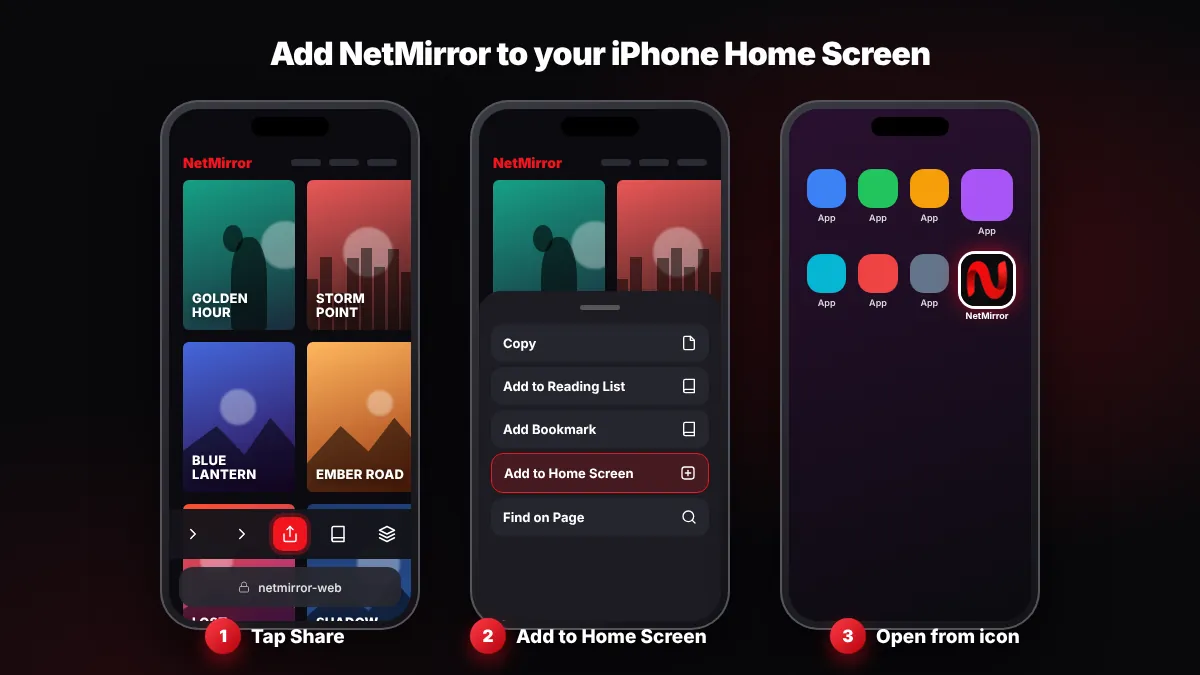
How to add NetMirror to your iPhone Home Screen
Adding a Home Screen shortcut makes the net mirror website open like an app, with its own icon. It takes less than a minute and needs no download.
- Open the site in Safari. Load the NetMirror web page you normally use and wait for it to finish loading.
- Tap the Share button. It is the square with an up arrow. On newer iOS versions you may need to tap the three-dot (More) button first to see Share.
- Tap "Add to Home Screen". Scroll down the share menu to find it.
- Rename it. Type a simple name such as "NetMirror" so you can find it easily.
- Tap Add. The icon now appears on your Home Screen. Tap it to open the site.
Tip: The shortcut saves one web address. If the NetMirror site moves to a new address, delete the old icon and add the new one. Since iOS 16.4, some other browsers can also add sites to the Home Screen, but Safari is the most reliable.
What is NetMirror webview for iOS?
A "webview" app is a simple app shell that only shows a website inside it. Some sites promote "NetMirror webview iOS" apps or IPA files. These are unofficial, and they are not always available. App Store listings of this kind can be removed at any time, and sideloaded versions often stop opening.
Important: Never install a configuration profile, enterprise certificate or "VPN profile" from an unknown site to get NetMirror on iPhone. Do not sideload random IPA files through unknown signing services. These can track your browsing, show unwanted content or stop working without warning.
To check your iPhone, go to Settings > General > VPN & Device Management. If you see a profile you did not install on purpose, tap it and choose Remove Profile. The Safari web version with a Home Screen icon gives you the same result without these risks.
Safari, Home Screen icon or webview app: which is best for iPhone?
Here is how the three ways to get NetMirror for iPhone compare on install, reliability and risk.
| Option | Install needed? | Reliability | Risk level |
|---|---|---|---|
| Safari web version | No | Good (address may change) | Low to medium (pop-ups possible) |
| Home Screen shortcut | No | Good (re-add if address changes) | Same as Safari |
| Webview app or IPA | Yes | Poor (often removed or revoked) | Higher (unknown developer, profiles) |
How to watch NetMirror on TV from iPhone (AirPlay)
If you use NetMirror for iPhone, you can send videos to an Apple TV or an AirPlay-compatible smart TV. Many recent Samsung, LG and Sony TVs support AirPlay 2.
- Join the same Wi-Fi. Connect your iPhone and TV to the same Wi-Fi network.
- Play a video in Safari. Start the title on the NetMirror web player.
- Tap the AirPlay icon. If the player shows the AirPlay icon, tap it and choose your TV.
- Use Screen Mirroring if needed. If there is no AirPlay icon, open Control Centre > Screen Mirroring and pick your TV.
Some web players block AirPlay, so Screen Mirroring is the backup. Keep your iPhone unlocked and plugged in for long movies. If you have an Android TV or Fire TV Stick, our NetMirror TV guide may suit you better.
Using NetMirror on iPad
NetMirror for iOS works the same way on iPad as on iPhone: open the web version in Safari. On iPad, the Share button usually sits at the top of the screen next to the address bar. Safari on iPad loads desktop versions of websites by default, which often gives a wider, more Netflix-like layout.
The bigger screen also makes it easier to switch audio and subtitles. See our guide to NetMirror subtitles and Hindi audio to change language on supported titles.
NetMirror for iOS not working? Quick fixes
- Turn off content blockers for the site. Tap the page settings icon in the address bar (shown as "aA" or a page icon), open Website Settings and turn off Use Content Blockers. Blockers can stop the player or verification page.
- Clear website data. Go to Settings > Apps > Safari > Advanced > Website Data (on older iOS: Settings > Safari > Advanced). Search for the site and delete its data, then reload.
- Avoid Private Browsing. Private tabs forget your verification, so you may have to verify every time.
- Check your connection. Switch between Wi-Fi and mobile data, and turn off Low Data Mode if videos keep buffering.
- Reload or restart. Close the Safari tab, restart your iPhone and open the site again.
If the site itself is down or blocked, no setting on your phone will fix it. In that case the address has probably changed.
Is NetMirror safe on iPhone?
The iPhone's security model limits what a website can do, but it does not make every site safe. NetMirror's developer is anonymous, and users report pop-up ads and redirects. An independent review site, TROYPOINT, also reported that a VirusTotal scan of the official NetMirror website flagged some files as malicious.
- Close fake "Your iPhone is infected" alerts. They are ads, not real warnings.
- Do not tap Allow on notification or calendar subscription prompts from these sites.
- Never enter your Apple ID password, card, UPI or bank details.
- Do not install profiles, certificates or IPA files from unknown sources.
There is a legal side too. NetMirror is not a licensed distributor, and using it may count as copyright infringement depending on your country's law. Read is NetMirror safe and legal for details, or try these legal NetMirror alternatives that have proper iPhone apps.
Conclusion
NetMirror for iOS does not exist as a verified App Store app, and Android APK files cannot run on iPhone or iPad. The web version in Safari is the simple, low-risk way to use NetMirror for iPhone. Add it to your Home Screen for an app-like icon, use AirPlay for TV, and avoid webview IPAs and unknown profiles.
Key takeaways
- APK files are Android-only; they cannot be installed on iPhone or iPad.
- NetMirror for iOS means the web version in Safari, not an App Store app.
- Share > Add to Home Screen makes the site open like an app.
- "Webview" apps and IPA files are unofficial and may disappear; never install unknown profiles.
- Use AirPlay or Screen Mirroring to watch on TV, and never enter payment details.
Frequently Asked Questions
Is NetMirror available on the App Store?
We could not find any official NetMirror app on the App Store. Some apps with similar names may appear for a while, but they are not verified and can be removed at any time. The reliable way to use NetMirror on iPhone or iPad is the web version in Safari, which you can add to your Home Screen.
Can I install the NetMirror APK on iPhone?
No. An APK is an Android app file, and iPhones and iPads cannot open or install it. iOS uses a different app format and normally installs apps only from the App Store. Any page offering a "NetMirror APK for iOS" is misleading. Use the NetMirror web version in Safari instead.
What is NetMirror webview for iOS?
A webview app is a simple app shell that shows a website inside it. Some sites promote NetMirror webview apps or IPA files for iPhone. They are unofficial, often stop working and may ask you to install profiles or certificates. The Safari web version with a Home Screen shortcut gives the same result with less risk.
Is the NetMirror web version free on iPhone?
Yes, the NetMirror web version is usually free on iPhone. Many mirrors show an ad-supported verification step that gives access for a few hours. Some versions ask for an email sign-in. You should never pay for NetMirror, and never enter your Apple ID password, card, UPI or bank details on any NetMirror page.
Can I watch NetMirror with Hindi audio on iPhone?
On many titles, yes. The NetMirror web player often includes multiple audio tracks, including Hindi, plus subtitles. Tap the audio or settings icon in the player while a video is playing to change it. Availability depends on the title and source. Our subtitles and Hindi audio guide explains the steps.
Why does NetMirror keep asking for verification on iPhone?
Verification is saved in Safari's website data, and it usually expires after a few hours. You will also need to verify again if you use Private Browsing, clear website data or switch browsers. If the check keeps looping, turn off content blockers for the site, clear its website data in Settings and try again.
Can I use NetMirror on iPad?
Yes. Open the NetMirror web version in Safari on your iPad, exactly like on iPhone. The Share button is usually at the top next to the address bar, so you can add a Home Screen icon there. Safari on iPad loads desktop versions of websites, which often gives a wider layout.

Written by NetMirror APK Editorial Team
We test NetMirror on Android phones, Android TV, Windows PCs and iPhones and update these guides when the app changes. We are an independent site — read our editorial policy and disclaimer.