Table of contents
- NetMirror TV APK vs phone APK: what is the difference?
- Which TVs support NetMirror TV?
- How to install NetMirror in TV using the Downloader app (Method 1)
- Method 2: How to download NetMirror in TV with a USB pendrive
- Method 3: Send the APK from phone to TV
- Which TV install method should you choose?
- Can I cast NetMirror to a Samsung or LG TV?
- Remote navigation tips for NetMirror TV
- How to fix NetMirror buffering on TV
- Is NetMirror TV safe to install?
- Conclusion
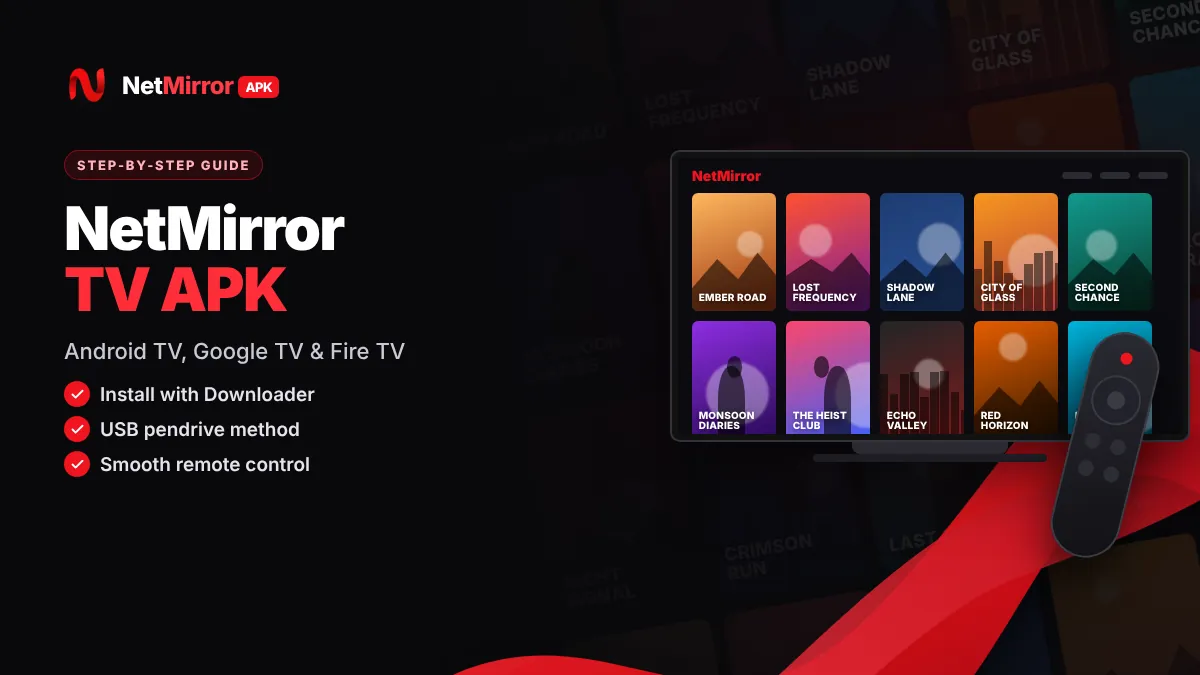
NetMirror TV is the big-screen version of the NetMirror app, made for Android TV, Google TV and Amazon Fire TV devices. The net mirror TV APK uses large tiles and a layout you can control with a normal TV remote. This guide explains which TVs support it, three ways to install it, how to cast from your phone and how to fix buffering.
Quick answer: NetMirror TV is a TV-friendly APK for Android TV, Google TV and Fire TV Stick. It is not on the Play Store, so you sideload it: install the Downloader app, allow it to install unknown apps, enter the APK link you trust, then install. Samsung (Tizen) and LG (webOS) TVs need casting or a Fire TV Stick.
NetMirror APK
Tip: scan any APK on VirusTotal before installing and keep Google Play Protect on.
NetMirror TV APK vs phone APK: what is the difference?
The TV APK is built for a remote control and a big screen, while the phone APK is built for touch. Both show the same kind of catalogue, but the controls are different.
| Feature | NetMirror TV APK | NetMirror phone APK |
|---|---|---|
| Devices | Android TV, Google TV, Fire TV | Android phones and tablets |
| Control | TV remote (D-pad and OK button) | Touch screen |
| Layout | Large tiles, remote-friendly menus | Mobile layout |
| How to install | Downloader app, USB pendrive or file transfer | Browser download and tap to install |
The phone APK may install on a TV, but some buttons may not respond to the remote. For the smoothest experience, use the TV version. You can read about the phone app on our NetMirror APK download page.
Which TVs support NetMirror TV?
NetMirror for TV works on devices that run Android TV OS, Google TV or Fire OS. Before installing the net mirror TV app, confirm which system your TV runs: open Settings > Device Preferences > About (Android TV) or Settings > My Fire TV > About (Fire TV).
Android TV and Google TV
Smart TVs running Android TV OS from brands like Sony, TCL, Mi/Xiaomi and OnePlus, plus Google TV streamers.
Fire TV Stick
Fire TV Stick, Fire TV Stick 4K and Fire TV Cube running Fire OS support sideloading with the Downloader app.
Android TV boxes
Boxes like Mi Box connect to any HDMI TV and run Android TV apps.
Samsung and LG
Tizen and webOS cannot install APK files. Cast from your phone or plug in a Fire TV Stick.
Tip: Some newer Fire TV models may run Amazon's Vega OS instead of Fire OS, and these may not allow sideloading Android APKs. Check your exact model before buying a stick for NetMirror.
How to install NetMirror in TV using the Downloader app (Method 1)
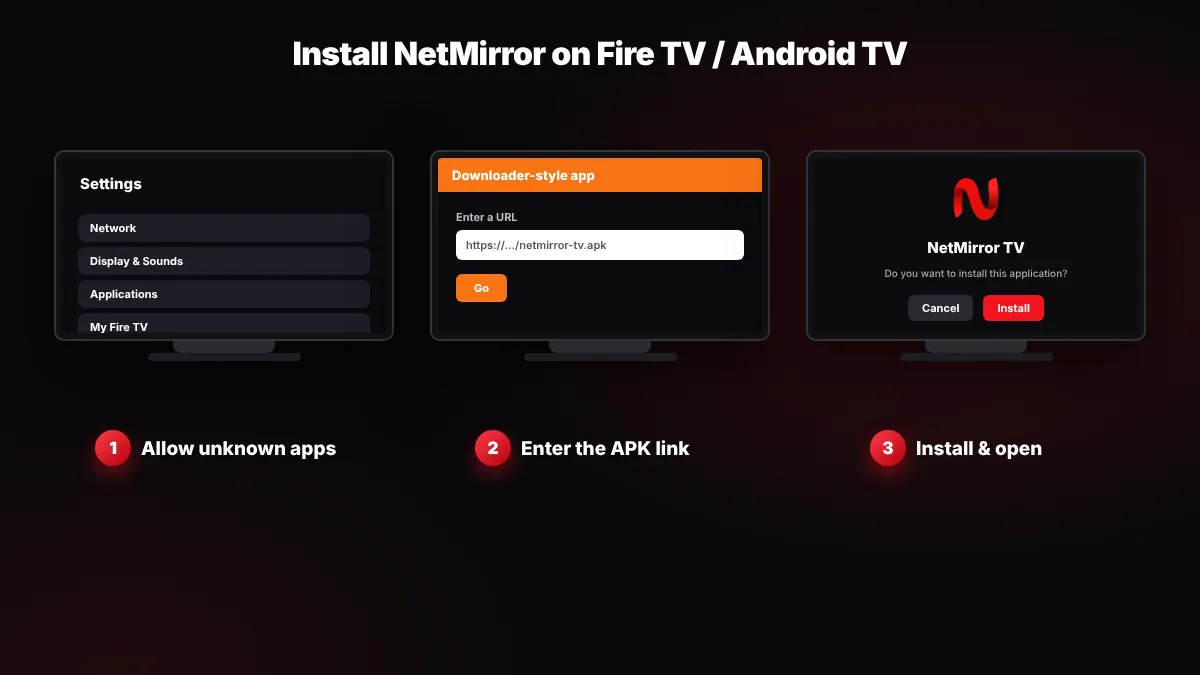
The Downloader app (by AFTVnews) is the easiest way to install the NetMirror TV APK. These steps are for Fire TV Stick.
- Install Downloader. On the Fire TV home screen, go to Find (search), type "Downloader", select the orange Downloader app and click Get or Download.
- Turn on Developer options. Go to Settings > My Fire TV > About, highlight your device name and press OK on the remote seven times until you see "You are now a developer".
- Allow unknown apps. Go back to Settings > My Fire TV > Developer options > Install unknown apps and turn Downloader ON. On older Fire OS versions, turn on "Apps from Unknown Sources" instead.
- Enter the APK link. Open Downloader, allow storage access if asked, type the NetMirror TV APK link from a source you trust into the URL box and click Go.
- Install the app. When the download finishes, click Install, then Open or Done.
- Delete the APK file. Downloader will offer to delete the file. Click Delete to free storage space.
On Android TV or Google TV: install Downloader from the Google Play Store. Turn on developer mode by clicking the build number seven times (Settings > Device Preferences > About > Build, or Settings > System > About > Android TV OS build on Google TV). Then go to Settings > Apps > Security & restrictions > Unknown sources and allow Downloader. Menu names can differ by brand.
Method 2: How to download NetMirror in TV with a USB pendrive
If your TV has a USB port, a pendrive works well. This is a good option for smart TVs and Android boxes with weak Wi-Fi.
- Download the APK on a PC or phone. Save the NetMirror TV APK and scan it on VirusTotal.
- Copy it to a pendrive. A pendrive formatted as FAT32 is usually read by most TVs.
- Install a file manager on the TV. Get a file manager app from the Play Store on your TV and allow it under Unknown sources.
- Plug in and install. Insert the pendrive, open the file manager, select the APK and click Install.
Fire TV Sticks have no normal USB port for storage, so you would need an OTG adapter. For Fire TV, Method 1 is simpler.
Method 3: Send the APK from phone to TV
You can also send the APK over Wi-Fi with a file transfer app such as "Send Files to TV". Install it on your Android phone and your Android TV, connect both to the same Wi-Fi, open Receive on the TV and Send on the phone, then choose the APK. Open the received file with a file manager on the TV to install it.
Which TV install method should you choose?
| Method | Best for | You need | Difficulty |
|---|---|---|---|
| Downloader app | Fire TV Stick, Google TV | Internet and the APK link | Easy |
| USB pendrive | Smart TVs and Android boxes with USB | Pendrive, PC or phone, file manager | Medium |
| Send files to TV | Android TV with same Wi-Fi as phone | Transfer app on phone and TV | Medium |
| Casting from phone | Samsung, LG or any TV with Chromecast | NetMirror on phone, Chromecast or mirroring | Easy |
Can I cast NetMirror to a Samsung or LG TV?
Yes. Install the app on your Android phone, then cast or mirror the screen to your TV. Both devices must be on the same Wi-Fi.
- Chromecast or Google TV: Tap the Cast icon in the player if it appears, or use Screen cast from Android Quick Settings.
- Samsung TV: On Samsung phones, use Smart View from Quick Settings.
- LG TV: Turn on Screen Share on the TV and choose it from your phone's cast menu.
- Fire TV: Go to Settings > Display & Sounds > Enable Display Mirroring.
Screen mirroring can lag on slow Wi-Fi. If you watch often, a Fire TV Stick with the TV APK gives a better picture. Prefer a laptop? See NetMirror for PC.
Remote navigation tips for NetMirror TV
- Use the D-pad to move, OK to select and Back to leave the player.
- Press OK during playback to show controls for quality, subtitles and audio.
- On Fire TV, open Your Apps & Channels, highlight NetMirror, press the Menu (three lines) button and choose Move to bring it to the front.
- If a button will not respond to the remote, a "Mouse Toggle" app can add an on-screen pointer.
How to fix NetMirror buffering on TV
Buffering on TV is usually caused by slow Wi-Fi, a full cache or an old app version. Try these fixes in order.
- Lower the quality. Switch from 1080p to 720p in the player.
- Improve the connection. Use 5 GHz Wi-Fi, move the router closer or use an Ethernet adapter.
- Clear cache. On Fire TV: Settings > Applications > Manage Installed Applications > NetMirror > Clear cache. On Android TV: Settings > Apps > NetMirror > Clear cache.
- Restart everything. Unplug the TV or stick and router for 30 seconds.
- Update the app. Follow our NetMirror update guide to install the latest version of the NetMirror APK for Android TV.
Still stuck? Our NetMirror not working guide covers crashes, black screens and playback errors on TV.
Is NetMirror TV safe to install?
NetMirror is a third-party, unofficial app, and its developer is anonymous. An independent review site, TROYPOINT, reported that a VirusTotal scan of the official NetMirror website flagged some files as malicious, and users report pop-up ads.
- Download only from a source you trust and scan the APK on VirusTotal.
- Keep Google Play Protect on (Android TV) and avoid "mod" or "premium" versions.
- Turn off Install unknown apps for Downloader after you finish installing.
- Never enter card or UPI details in the app.
NetMirror is not a licensed distributor, so using it may count as copyright infringement depending on your country's law. Read is NetMirror safe and legal for the full picture.
netmerrorapk.com is an independent guide. We don't host, upload or own any APK or video content and we are not affiliated with NetMirror, Netflix or any OTT platform.
Conclusion
NetMirror TV brings the app to Android TV, Google TV and Fire TV with a remote-friendly layout. The Downloader app is the easiest install method, a USB pendrive or file transfer app works for other TVs, and Samsung or LG owners can cast from a phone. Keep the app updated, scan every file and visit our NetMirror APK home page for more guides.
Key takeaways
- The NetMirror TV APK is built for remotes; the phone APK is built for touch.
- It works on Android TV, Google TV, Fire OS devices and Android TV boxes.
- Samsung (Tizen) and LG (webOS) TVs need casting or a Fire TV Stick.
- The Downloader app is the easiest install method on Fire TV Stick.
- Fix buffering with 720p, 5 GHz Wi-Fi, clearing cache and updating the app.
Frequently Asked Questions
Is the NetMirror TV APK different from the phone APK?
Yes. The NetMirror TV APK is built for a big screen and a TV remote, with large tiles and D-pad navigation. The phone APK is designed for touch screens. The phone version may install on a TV, but some buttons may not respond to the remote, so the TV version usually gives a smoother experience.
Can I install NetMirror on a Samsung or LG smart TV?
Not directly. Samsung TVs run Tizen and LG TVs run webOS, and neither can install Android APK files. You can cast or mirror NetMirror from your Android phone using Smart View or Screen Share, or plug in a Fire TV Stick or Android TV box and install the TV APK on it.
How do I update NetMirror on Android TV?
Download the latest NetMirror TV APK from the source you trust, using the Downloader app or a USB pendrive, and install it over the old version. Your settings usually stay in place. Scan the new file on VirusTotal first. Our NetMirror update guide explains each step in detail.
Is the Downloader app safe to use?
Downloader by AFTVnews is a well-known app available in the Amazon Appstore and Google Play for Android TV. The app itself is a simple browser and file downloader. The risk comes from the files you download with it, so only enter links you trust, scan APKs on VirusTotal and turn off unknown apps afterwards.
Why is NetMirror buffering on my Fire TV Stick?
Buffering usually comes from slow Wi-Fi, a full cache or an old app version. Lower the quality to 720p, use 5 GHz Wi-Fi or an Ethernet adapter, clear the app cache in Settings > Applications > Manage Installed Applications, and restart the stick and router. Updating the app also fixes many playback errors.
Do I need a VPN to use NetMirror TV?
A VPN is not required to install or open NetMirror TV. Some people use a VPN for privacy on public networks, but it can slow down streaming on a Fire TV Stick. A VPN does not make watching unlicensed content legal. Read our safety and legal guide before you decide.
Written by NetMirror APK Editorial Team
We test NetMirror on Android phones, Android TV, Windows PCs and iPhones and update these guides when the app changes. We are an independent site — read our editorial policy and disclaimer.