Table of contents
- Quick fixes to try first
- Why is NetMirror not working? Problems, causes and fixes
- Why is NetMirror not working on Android?
- NetMirror not working on Android TV or Fire TV
- Why is NetMirror not working on PC?
- NetMirror not working on iPhone
- Is NetMirror down or blocked?
- Are you using an old version?
- How to reinstall NetMirror the right way
- Conclusion
Is NetMirror not working for you today? Maybe the app will not open, videos keep buffering, or the website shows a blank page. Most of these problems have simple causes, such as an old version, a full cache, a weak connection or a server that is down. This guide gives quick fixes first, then device-by-device solutions.
Quick answer: NetMirror usually stops working because of an outdated app version, corrupted cache, slow internet, a busy server or a blocked domain. First restart the app, switch between Wi-Fi and mobile data, clear the cache and update to the latest version. If it still fails, try another server, change DNS or reinstall.
Quick fixes to try first
Try these in order. Most people find the problem within the first four steps.
- Restart the app. Close NetMirror fully from your recent apps and open it again.
- Check your internet. Switch from Wi-Fi to mobile data, or the other way round, and test another video app.
- Update NetMirror. Old versions often stop loading when the servers change.
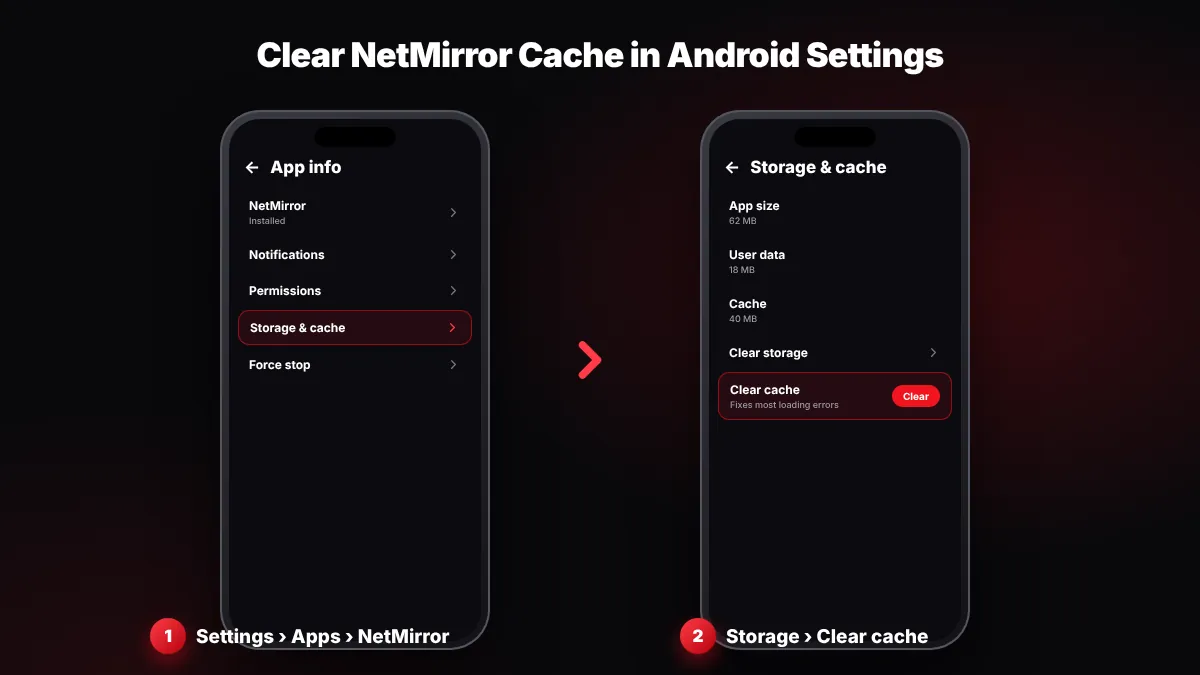
- Clear the cache. Go to Settings > Apps > NetMirror > Storage > Clear cache.
- Try another server or quality. Pick a different source or a lower quality such as 480p or 720p.
- Restart your device. A simple reboot clears many memory and network glitches.
- Reinstall the app. Uninstall, then install a fresh copy from a source you trust.
Why is NetMirror not working? Problems, causes and fixes
Match your problem in the table below to find the most likely cause and the fix.
| Problem | Likely cause | Fix |
|---|---|---|
| NetMirror not opening or crashes on launch | Old version or corrupted cache | Update the app, then clear cache |
| Stuck on loading or blank home screen | Server down or domain blocked | Wait a few hours; test on mobile data |
| Video keeps buffering | Slow internet, busy server or high quality | Lower quality, change server, move closer to the router |
| Video not playing or playback error | Source link not working | Choose another server or source for that title |
| "App not installed" error | Old version conflict, low storage, or Android below 5.0 | Uninstall the old app, free up space, check Android version |
| Web version stuck on verification | Cookies blocked or ad-blocker interfering | Allow cookies, pause blocker for that site |
| No sound or wrong language | Wrong audio track selected | Change the audio track in the player |
For audio and subtitle problems, see our subtitles and Hindi audio guide.
Why is NetMirror not working on Android?
Wondering why NetMirror is not working on Android? It usually fails because of stored cache, an outdated APK or aggressive battery and data savers. Work through the fixes below.
Clear cache and data
- Open Settings. Go to Settings > Apps (on some phones, "Apps & notifications" or "App management").
- Find NetMirror. Tap NetMirror in the app list.
- Open Storage. Tap Storage or Storage & cache.
- Clear cache first. Tap Clear cache and open the app again.
- Clear data if needed. If it still fails, tap Clear storage or Clear data. This may reset your watchlist and settings.
Turn off battery saver and data saver
Battery saver and data saver can stop NetMirror from loading in the background or limit streaming speed. Turn them off while watching, or set NetMirror's battery use to "Unrestricted" under the app's settings.
Try a different DNS
Sometimes your network's DNS is slow or fails to find the server, which shows up as "site can't be reached". Some users fix this with Android's Private DNS: go to Settings > Network & internet > Private DNS, choose "Private DNS provider hostname" and enter dns.google. The menu name may differ on your phone. This will not help if the NetMirror server itself is down.
If Google Play Protect warns you about the app, do not ignore it. Delete the file and download a clean copy using our NetMirror APK download guide.
NetMirror not working on Android TV or Fire TV
On TVs, NetMirror problems usually come from low storage, a phone APK installed instead of the TV APK, or a TV that has been on for days.
- Force stop and clear cache: On Android TV, open Settings > Apps > NetMirror. On Fire TV, open Settings > Applications > Manage Installed Applications > NetMirror.
- Restart the TV properly: Unplug the TV or Fire TV Stick for 30 seconds, then plug it back in.
- Use the TV version: The phone APK may not work well with a remote. Install the TV-friendly APK instead.
- Free up space: Uninstall apps you do not use. Low storage causes crashes and buffering on many TV sticks.
- Check Wi-Fi strength: Move the router closer or use the 5 GHz band if your TV supports it.
Our NetMirror TV APK guide covers installation with the Downloader app on Google TV and Fire TV Stick.
Why is NetMirror not working on PC?
On a Windows PC or laptop, NetMirror runs either in a browser or through an Android emulator. Each has its own fixes.
Web version in Chrome, Edge or Firefox
- Clear cookies and cached files for the site, then reload.
- Turn off extensions one by one, especially ad-blockers, and test again.
- Try another browser to see whether the problem is browser-specific.
- Complete the human verification again if your access time has ended.
If the site keeps sending you back to the verification screen, follow our NetMirror login and verification guide. The NetMirror web guide explains how the online version works.
Android emulator (BlueStacks or LDPlayer)
- Update the emulator to its latest version.
- Give it more RAM and CPU cores in the emulator's settings.
- Reinstall the NetMirror APK inside the emulator.
See NetMirror for PC for full setup steps.
NetMirror not working on iPhone
There is no NetMirror APK for iPhone, so iOS users use the web version in Safari. If it does not load, clear Safari's website data under Settings > Safari (or Settings > Apps > Safari on newer iOS) and reload. Turn off content blockers for the site, and try Chrome for iOS if Safari still fails.
Is NetMirror down or blocked?
Sometimes the fault is not on your side. NetMirror servers can go down for maintenance or overload, and some of its domains get blocked by internet providers, especially in India.
- Ask a friend on a different network whether it works for them.
- Test on mobile data and on Wi-Fi to see if one network is blocked.
- Wait a few hours; server problems often fix themselves.
- Be careful with "new mirror" links in comments; many are fake.
Are you using an old version?
An old NetMirror version is one of the most common reasons the app stops loading. When the servers change, older builds may show errors or a blank screen. Check that you have NetMirror v6.1 and follow our guide on how to update NetMirror safely.
How to reinstall NetMirror the right way
A clean reinstall fixes most stubborn problems, such as constant crashes or "App not installed" errors.
- Uninstall the old app. Long-press the NetMirror icon and tap Uninstall.
- Restart your phone. This clears leftover files from memory.
- Download a fresh copy. Get the latest APK, about 49 MB, from a source you trust.
- Scan and install. Scan the file on VirusTotal, then install it.

NetMirror APK
Tip: scan any APK on VirusTotal before installing and keep Google Play Protect on.
netmerrorapk.com is an independent guide. We don't host, upload or own any APK or video content and we are not affiliated with NetMirror, Netflix or any OTT platform.
Conclusion
When NetMirror is not working, start simple: restart, check your connection, clear the cache and update. Then use the device sections above for Android, TV, PC or iPhone. If the server is down or the domain is blocked, waiting is often the only fix. You can always return to the NetMirror APK home page for the latest app details.
Key takeaways
- Most NetMirror problems come from old versions, cache, slow internet or server issues.
- Clear cache via Settings > Apps > NetMirror > Storage before reinstalling.
- Lower the video quality or switch servers to stop buffering.
- On TVs, use the TV APK, free up storage and unplug the device for 30 seconds.
- If the site is down or blocked, wait and avoid fake mirror links.
Frequently Asked Questions
Why is NetMirror not working today?
The most common reasons are an outdated app version, a corrupted cache, slow internet, a busy server or a blocked domain. Restart the app, switch between Wi-Fi and mobile data, clear the cache and update to the latest version. If many users have the same problem at once, the server is probably down, so wait a few hours.
Why does NetMirror keep buffering?
Buffering usually happens because of slow internet, a busy server or a video quality that is too high for your connection. Lower the quality to 480p or 720p, switch to another server, and move closer to your Wi-Fi router. Pausing other downloads and updates that use your data also helps.
How do I clear NetMirror cache on Android?
Open Settings, go to Apps, tap NetMirror, then tap Storage or Storage and cache and choose Clear cache. Open the app again to test it. If it still fails, use Clear storage or Clear data, but note that this may reset your watchlist and settings. Menu names differ slightly between phone brands.
Why is NetMirror not working on my Fire TV Stick?
On Fire TV, problems usually come from low storage, a phone APK installed instead of the TV version, or the device running for days. Clear the cache under Settings, Applications, Manage Installed Applications, unplug the stick for 30 seconds and free up space. See our NetMirror TV guide for the TV setup.
Why is NetMirror not working on PC?
On a PC, the web version often fails because of old cookies, an ad-blocker or an expired verification. Clear the site's cookies, turn off extensions one by one, complete the verification again and try another browser. If you use BlueStacks or LDPlayer, update the emulator and reinstall the APK inside it.
Does changing DNS fix NetMirror?
Sometimes. If your network's DNS is slow or cannot find the server, switching Android's Private DNS to dns.google (under Settings, Network and internet, Private DNS) may fix "site can't be reached" errors. It will not help when the NetMirror server itself is down, and the menu names vary between phones.
Why does NetMirror show "App not installed"?
This error usually means an older version conflicts with the new APK, your storage is almost full, or your Android version is too old for the app. Uninstall the old version, free up some space, restart your phone and install a fresh copy from a source you trust. Scan the file on VirusTotal first.
Written by NetMirror APK Editorial Team
We test NetMirror on Android phones, Android TV, Windows PCs and iPhones and update these guides when the app changes. We are an independent site — read our editorial policy and disclaimer.