Table of contents
- How to get subtitles in NetMirror on Android
- How to change NetMirror audio to Hindi
- How to turn on subtitles on Android TV or Fire TV
- How to use subtitles on the NetMirror web version (PC)
- Where to find subtitle and audio options on each device
- Can you change NetMirror subtitle size and position?
- NetMirror subtitles not showing? How to fix it
- Why is NetMirror Hindi audio not available on some titles?
- Conclusion
Want to turn on NetMirror subtitles or switch a movie to Hindi audio? Both options are inside the video player, but the icons are small and their place changes between app versions. This guide shows how to get subtitles in NetMirror on phone, TV and PC, how to change the language, and what to do when subtitles do not show.
Quick answer: To get subtitles in NetMirror, start a video, tap the screen, then tap the CC (subtitles) or audio icon, usually at the top-right or inside a settings gear. Choose your subtitle language or "Hindi" under audio. Hindi audio is only available on titles whose source includes a Hindi track.
How to get subtitles in NetMirror on Android
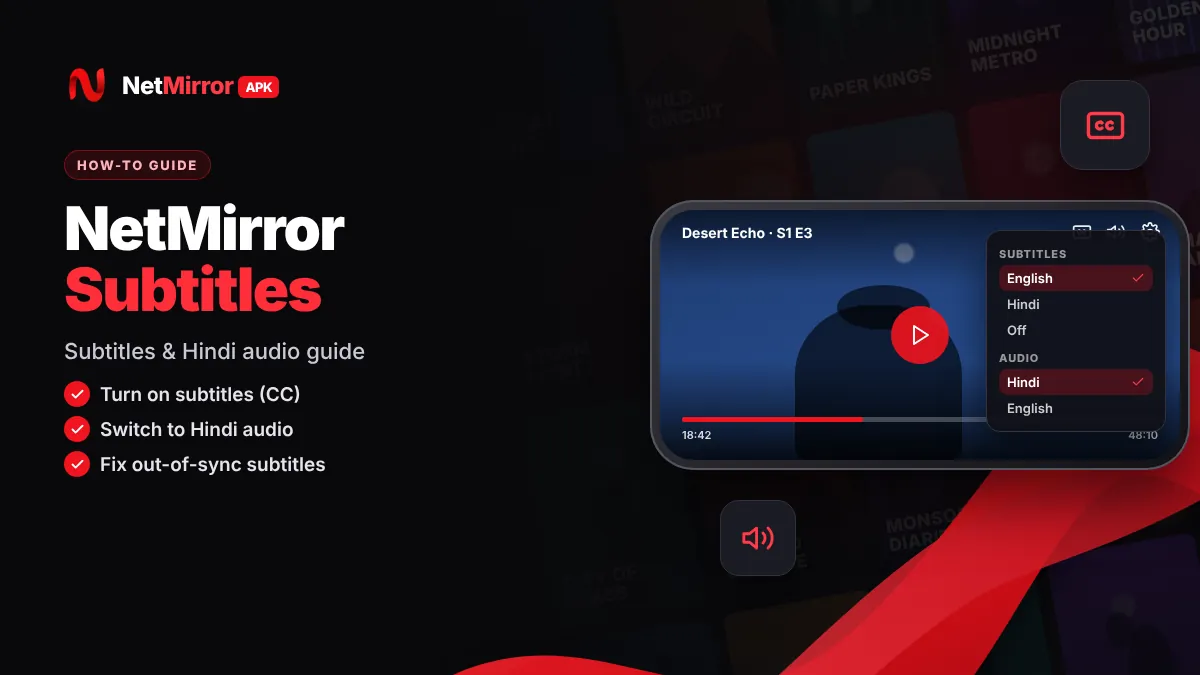
On the NetMirror Android app, subtitles are turned on from the player controls. The exact icon may look different in your version, but the steps are usually the same.
- Start the video. Open any movie or episode and let it begin playing.
- Tap the screen once. This shows the player controls at the top and bottom.
- Find the subtitles icon. Look for a "CC" icon, a speech-bubble icon or a settings gear, usually at the top-right corner.
- Choose a language. Select English, Hindi or another available language from the subtitle list.
- Close the menu. Tap outside the menu; subtitles should appear within a few seconds.
Do not see a CC icon at all? Your version may hide it under a three-dot menu or the gear icon. Updating to the latest NetMirror v6.1 from our NetMirror APK download page often brings the newer player.
How to change NetMirror audio to Hindi
To get NetMirror Hindi audio, open the audio menu in the player and choose "Hindi". Many titles offer Hindi dubbing, but not all, because the audio depends on the title and the source server.
- Play the title. Start the movie or episode you want to watch.
- Open the audio menu. Tap the screen, then tap the audio or language icon, or open the settings gear and choose "Audio".
- Select Hindi. It may show as "Hindi", "hin" or "हिन्दी".
- Try another server if Hindi is missing. Some titles have Hindi audio only on certain sources.
You change language in NetMirror the same way for any other dubbed track, as long as the source includes it.
Tip: Search results and title pages in some versions show language tags such as "Hindi" or "Multi Audio". Check these before you start playing to save time.
How to turn on subtitles on Android TV or Fire TV
On a TV, you use the remote instead of tapping. The TV APK has a remote-friendly layout, but the subtitle option can be harder to spot.
- Press OK or Select on the remote while the video plays to show the controls.
- Use the arrow keys to move to the CC, audio or settings icon.
- Press OK, pick your subtitle or audio language, then press Back to close the menu.
If the menu does not respond to the remote, make sure you installed the TV version. Our NetMirror TV guide covers Android TV, Google TV and Fire TV Stick.

How to use subtitles on the NetMirror web version (PC)
On a laptop or PC, move your mouse over the video to show the controls. The CC icon or settings gear usually appears in the bottom-right or top-right corner. Click it and choose your language. In some web players, pressing the C key also turns captions on or off.
The same steps work in Chrome, Edge or Firefox on Windows and in Safari on iPhone. Read our NetMirror web guide to learn how the online version works.
Where to find subtitle and audio options on each device
| Device | How to open controls | Where the options usually are |
|---|---|---|
| Android phone or tablet | Tap the video once | CC or audio icon at top-right, or settings gear |
| Android TV / Google TV | Press OK on the remote | CC or settings icon in the control bar |
| Fire TV Stick | Press Select on the remote | CC or settings icon in the control bar |
| PC or laptop (browser) | Move the mouse over the video | CC icon or gear at bottom-right or top-right |
| iPhone or iPad (Safari) | Tap the video once | CC or speech-bubble icon in the player |
Can you change NetMirror subtitle size and position?
Some versions of the NetMirror player let you change subtitle size, color or background from a "Subtitle settings" or "Aa" option inside the subtitle menu. If you do not see it, your player may not support styling.
On Android, some players also follow the system caption style. Go to Settings > Accessibility > Caption preferences to change the text size and style. This may or may not affect NetMirror, depending on your version.
NetMirror subtitles not showing? How to fix it
If NetMirror subtitles are not showing, the selected source usually has no subtitle file, or the app needs an update. Try these fixes in order:
- Check that subtitles are switched on and a language is selected, not "Off".
- Switch to another source or server for the same title.
- Try another video quality, such as 720p instead of 1080p.
- Close and reopen the video, or restart the app.
- Update NetMirror to the latest version.
- Clear the app cache under Settings > Apps > NetMirror > Storage.
Subtitles out of sync?
If subtitles appear too early or too late, look for a "Subtitle delay" or "Sync" option in the subtitle menu. If there is none, switching to another source usually fixes the timing. For other playback problems, see our NetMirror not working guide.
Why is NetMirror Hindi audio not available on some titles?
Net mirror apps do not create their own dubbing. They play whatever audio tracks the source provides, so if a film or series was never dubbed in Hindi, or the chosen server only carries the original track, the Hindi option will not appear. Try another server, or check whether the title has an official Hindi version at all.
Conclusion
NetMirror subtitles and Hindi audio are both a few taps away in the player: tap the screen, open the CC or audio icon, and choose your language. Hindi audio depends on the title and source, so switching servers often helps. Keep the NetMirror app updated for the newest player options.
Key takeaways
- Tap the video, then the CC, audio or gear icon (usually top-right) to change subtitles and language.
- Hindi audio is available on many titles, but only where the source includes a Hindi track.
- On TV, press OK or Select on the remote and use the arrow keys to reach the icons.
- If subtitles do not show, switch source, change quality or update the app.
- The player layout changes between versions, so the icons may look different on yours.
Frequently Asked Questions
How do I get subtitles in NetMirror?
Start a video, tap the screen once to show the controls, then tap the CC, speech-bubble or settings gear icon, usually at the top-right. Choose your subtitle language from the list and close the menu. If you do not see the icon, check the three-dot menu or update the app to the latest version.
How do I change NetMirror audio to Hindi?
While the video plays, tap the screen and open the audio or language icon, or open the settings gear and choose Audio. Select Hindi, which may also appear as "hin" or in Devanagari script. If Hindi is missing, try another server for the same title, because some sources carry only the original audio.
Why is Hindi audio not available on some titles?
NetMirror plays the audio tracks that the source provides. If a film or series was never dubbed in Hindi, or the selected server carries only the original language, the Hindi option will not appear. Switching to another server sometimes helps. Look for "Hindi" or "Multi Audio" tags on title pages before you start playing.
Why are NetMirror subtitles not showing?
Usually the selected source has no subtitle file, subtitles are set to Off, or the app needs an update. Check that a language is selected, switch to another server, try a different quality such as 720p, and restart the video. Updating the app and clearing its cache also fix many subtitle problems.
How do I fix subtitles that are out of sync?
Look for a "Subtitle delay" or "Sync" option inside the subtitle menu and adjust the timing until the text matches the speech. If your player has no such option, switch to another source or server for the same title, because a different subtitle file often has the correct timing.
How do I turn on NetMirror subtitles on a TV?
Press OK or Select on your remote while the video plays to show the controls. Use the arrow keys to move to the CC, audio or settings icon, press OK and choose your language. If the remote does not work well in the menus, install the TV version using our NetMirror TV guide.

Written by NetMirror APK Editorial Team
We test NetMirror on Android phones, Android TV, Windows PCs and iPhones and update these guides when the app changes. We are an independent site — read our editorial policy and disclaimer.